Connector
Overview
A Connector is a pre-built integration plug-in for the XMPro App Designer that allows you to connect to third-party data sources without writing code.
They can be used when integrating data from data sources such as a database into an Application. This can include real-time data from machines, websites, other streaming data, or contextual data such as the make or model of a certain item.
Connectors are useful if you want to use the data within an Application or display the data to the user on a page of an Application.
Data Sources can include databases, Data Streams, or Recommendations. See the Data Integration article for more details. You can assume that Connectors have already been set up by your Administrator.
Each Connector consists of code, settings, and other properties that are packaged into a file that can be uploaded to App Designer.
XMPro has a library of Connectors available to use. To acquire any of these Connectors, please contact your XMPro sales representative or write to us at support@xmpro.com. Alternatively, since Connectors can be written by anyone that has some knowledge of programming and has access to the required technologies, you can write your own Connector by following these instructions.
Category
Connectors can be grouped into categories. This category is separate from the App and Data Stream Categories.
Settings
A Connector consists of code and user settings. The code defines the actions a Connector performs in App Designer. The settings are the input for the code that executes, provided by the user when adding the Connector to App Designer, such as authentication credentials.
For example, consider the SQL Server Connector, which retrieves data from a SQL database. The settings a user must define for the Connector so it can do that are as follows:
- Name of the SQL Server instance
- SQL Server username
- Whether SQL Server authentication should be used or not
- SQL Server password
- Database to which the data should be written
Finding Connectors
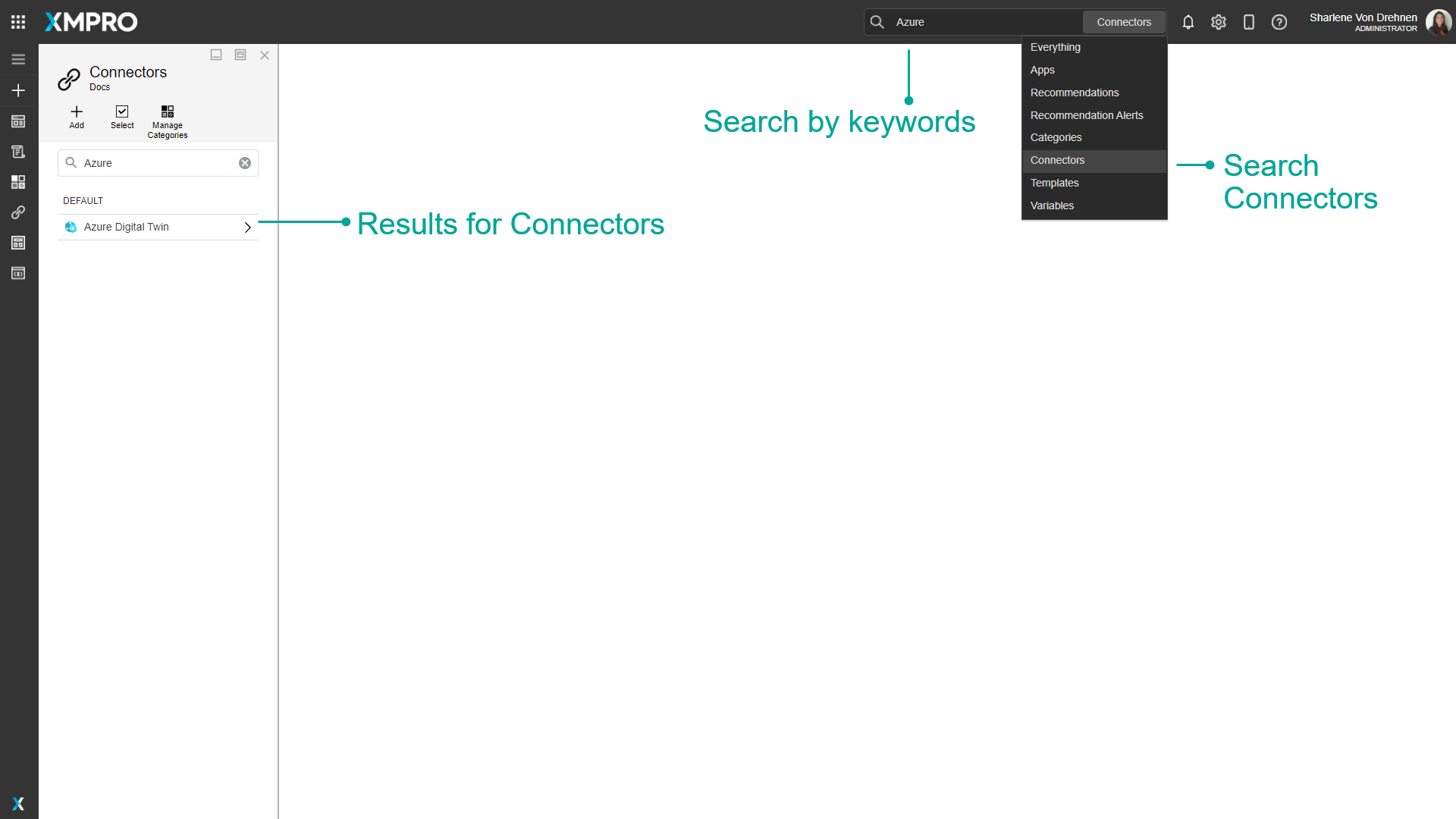
The search bar can be used to find any specific Connectors that you may be looking for. There is a dropdown option where you can specify to search through everything in App Designer, or only for Connectors.
Adding a Connector
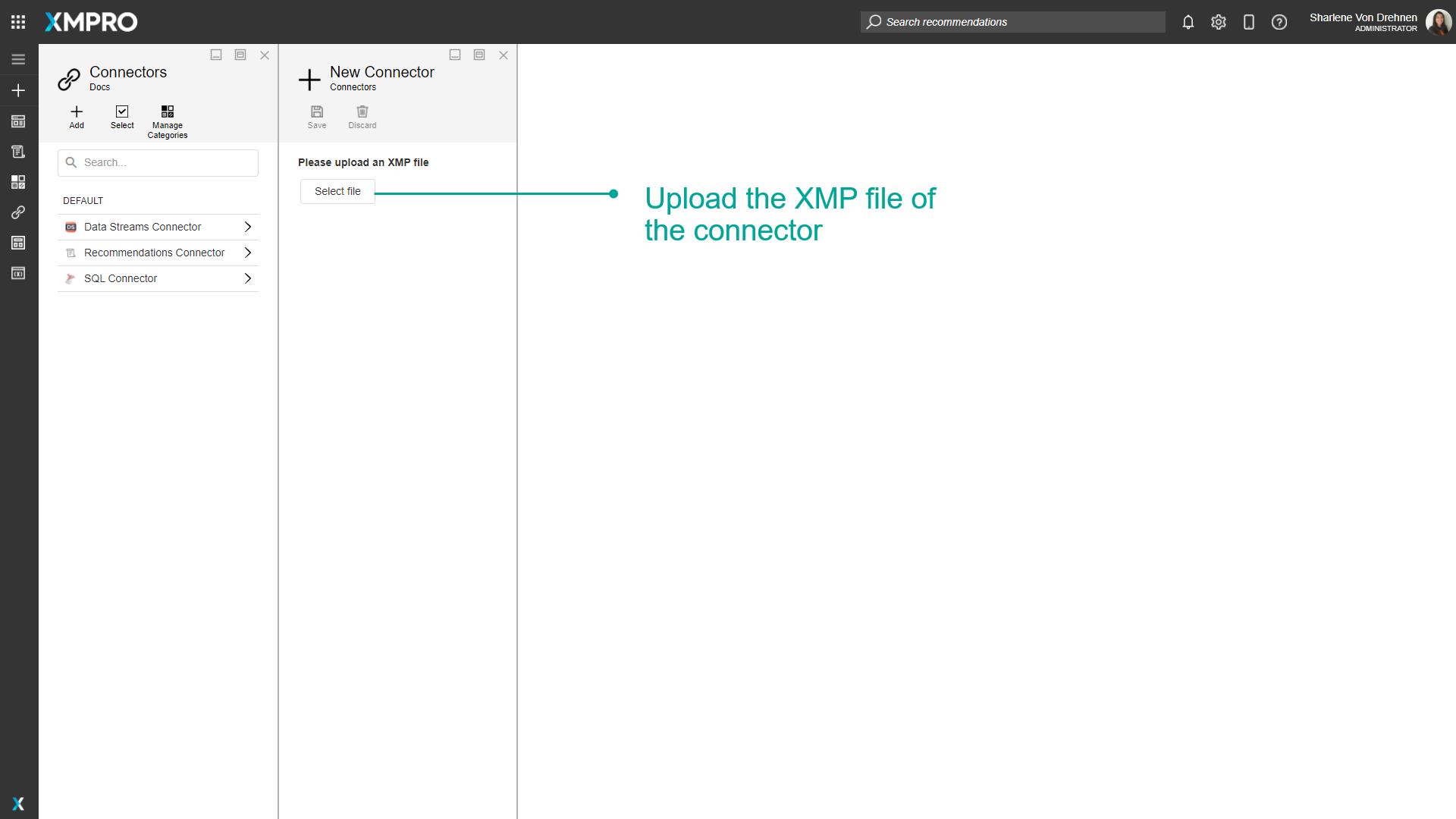
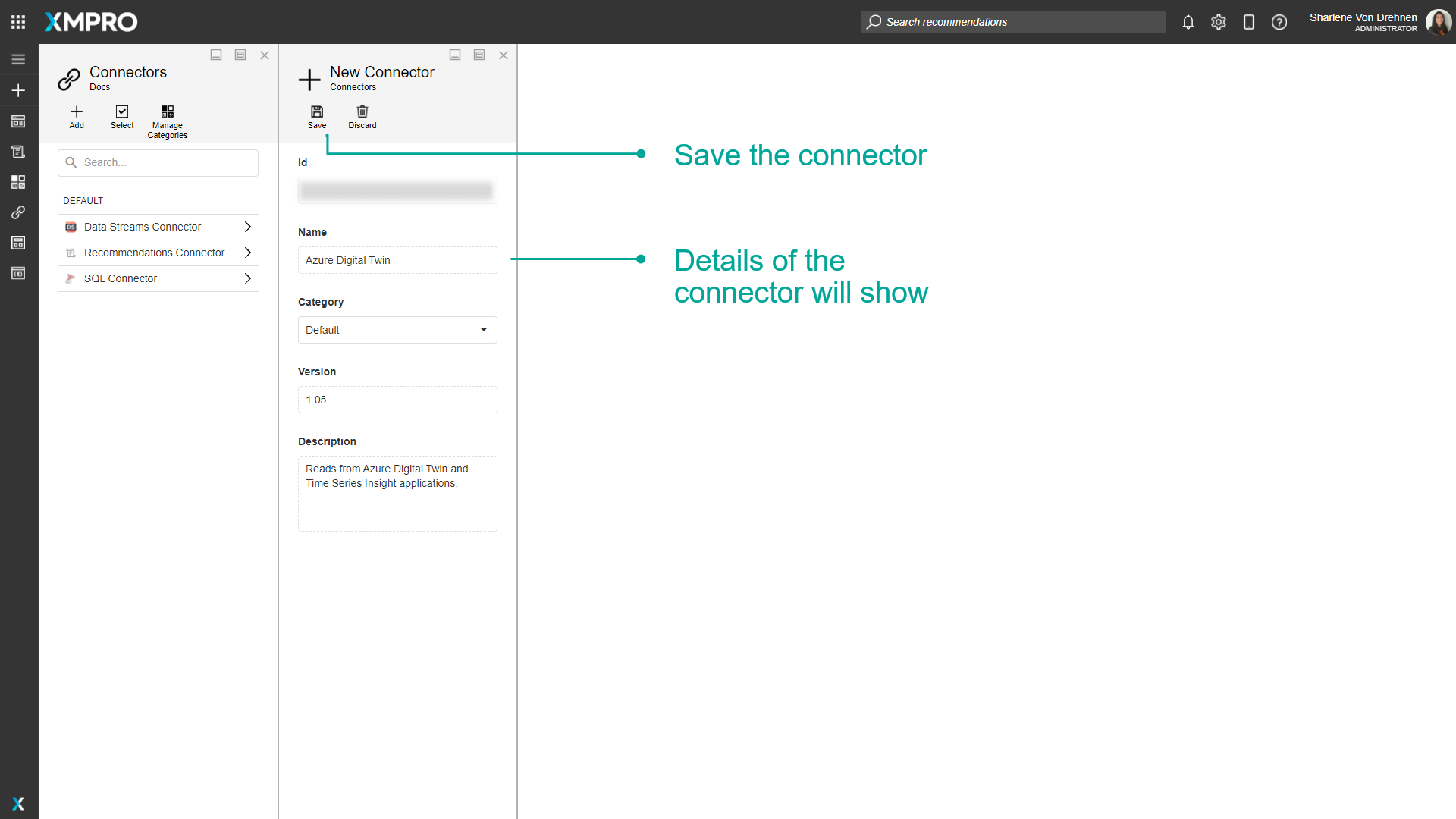
Connectors can be added by uploading their XMP file on the connectors page. Each version of a Connector has its own XMP file. When uploading an app, any missing Connectors that the app needs must be updated or uploaded for the app to be imported successfully.
Versions
Connectors can have multiple versions. For example, a new version of a Connector can be created if there are any changes or updates made to it. Changes or updates made to new versions of a Connector will not affect the previous versions.
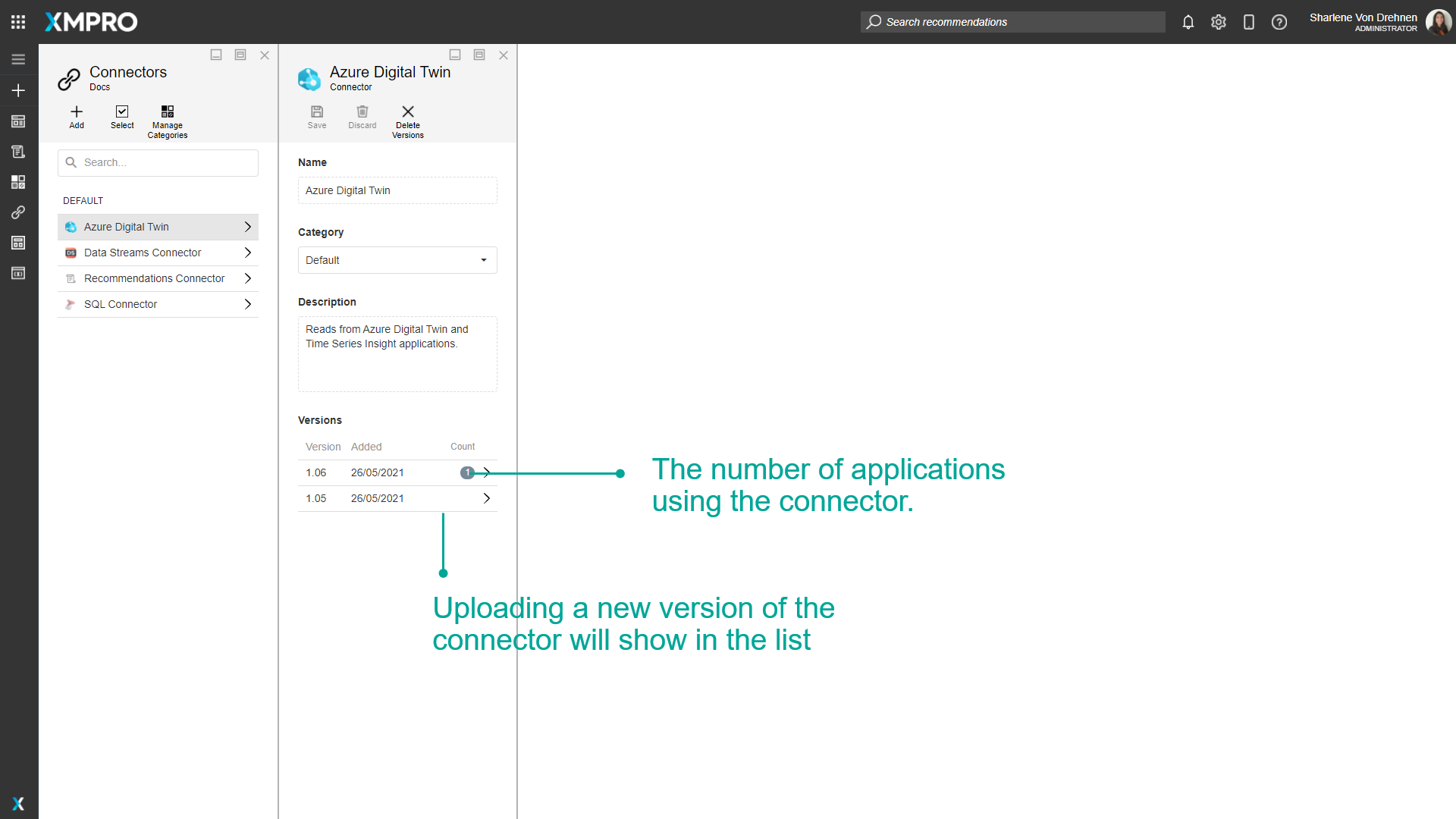
Each version of a Connector has its own XMP file. When uploading a Connector, a specific version of that Connector will be uploaded. To upload a different version, you will need to upload the XMP file for that specific version you want to use.
When you view a Connector, you can see the list of specific versions for that Connector. The number of apps using each version is shown next to the version number. Apps that you do not have access to will not show on the list. When you upload a new version, the new version will be displayed in this list.
When selecting a Connector to use in an app, the application will automatically choose the latest version available.
Note
When a new version of a Connector is uploaded, any apps using older versions may need to be upgraded. See the Data Integration article for more information on how to upgrade an app's connection.
View and Edit Applications
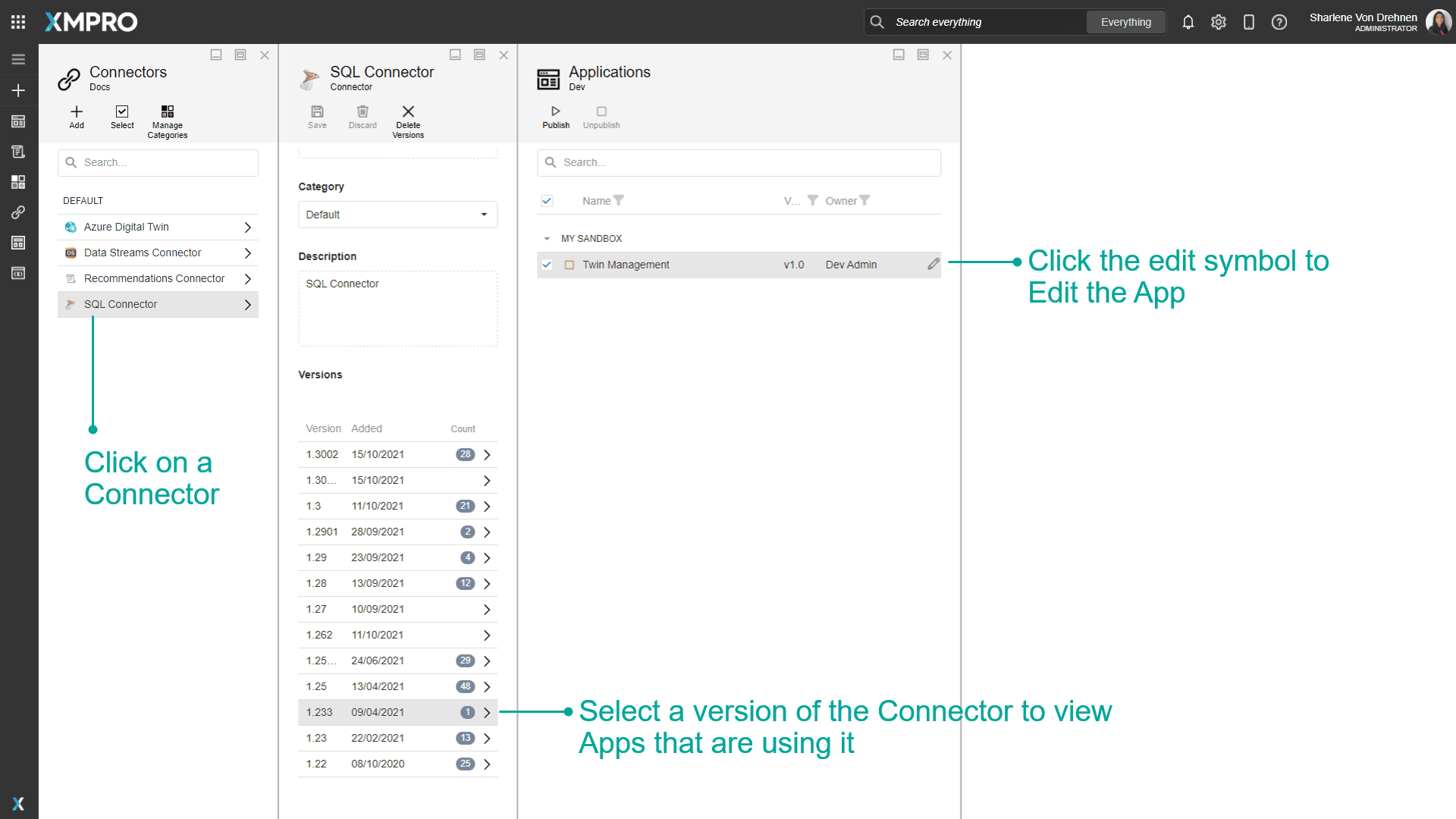
There is an alternate way to view or edit Applications directly from the Connectors page. When viewing a Connector, you will see the number of Applications using each version of the Connector. Expand to see the full list of Applications, which can be viewed by clicking on the Application or edited by clicking the Edit button.
Publish and Unpublish Apps
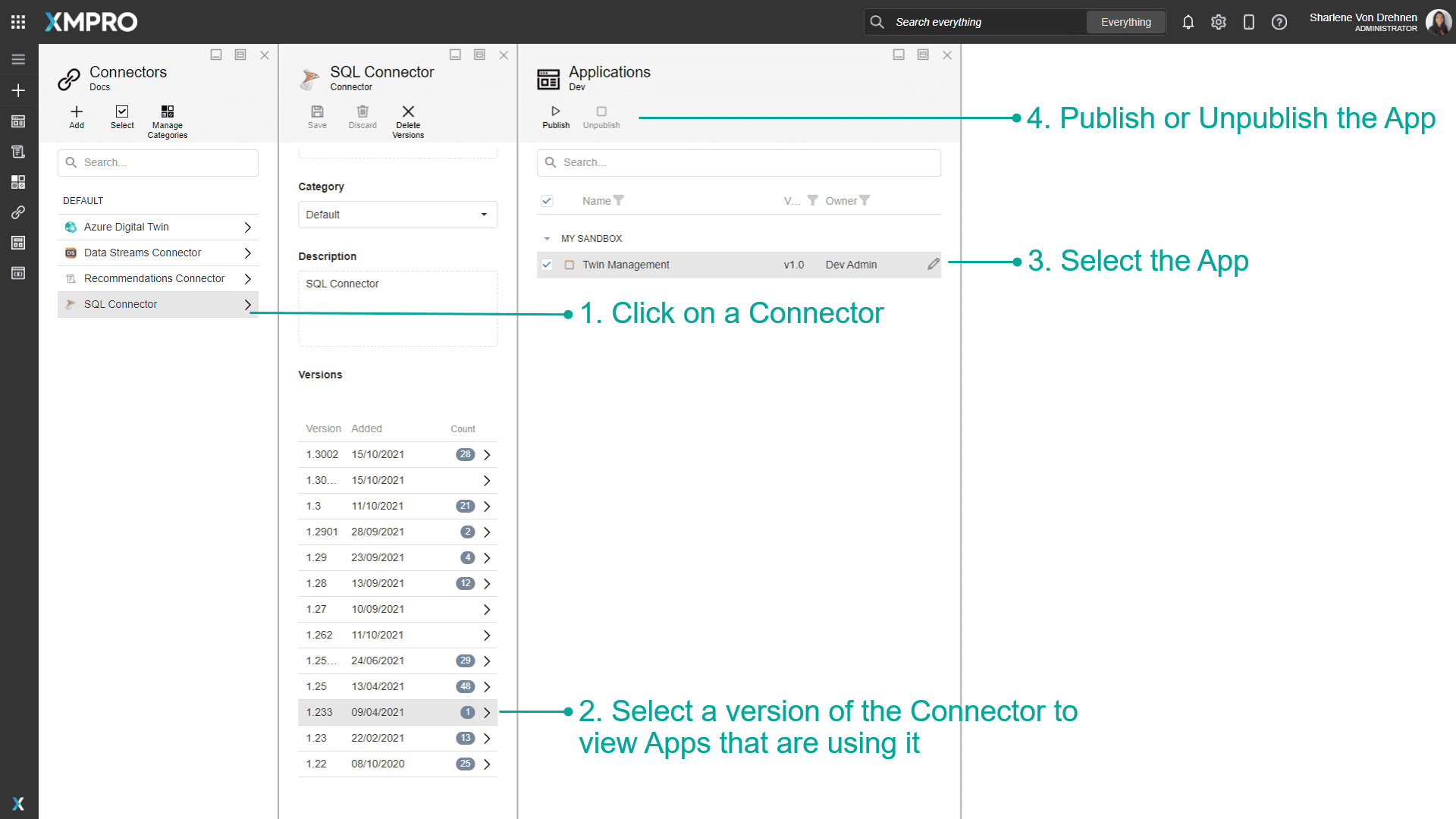
You can also publish or unpublish an Application that uses that version of the Connector.
As an Admin, this is useful if you need to unpublish an Application and you don't have access to it. See the How to Admin Unpublish Override article for more details.
Actions on the Connector
| Action | Description |
|---|---|
| Add | Adds a new Connector. |
| Select | Selects multiple Connectors. |
| Delete | Deletes the Connector. |
| Manage Categories | Creates and edits categories to organize the Connectors. These categories are separate from the App and Data Stream Categories. |
| Save | Saves any changes made to the Connector up to this point. |
| Discard | Discards any changes made to the Connector up to this point. |
| Delete Versions | Deletes a selected version of a Connector. You can only delete versions that don't have any apps using that version of the Connector. If you don't have access to an app that a version is using, you still cannot delete the version. |
Connector Pooling
To improve performance, App Designer reuses the Connector handler instances that back your Connectors rather than recreating them on every request. These reused instances are kept in a single pool that is shared across the entire App Designer deployment.
When a Connector is needed, App Designer serves it as a warm load when a handler is already in the pool (reused immediately) or a cold load when one is not (a fresh instance is built, which is slower). A Connector loads cold on its first use, after its pooled entry is evicted, or after the pool is cleared.
The pool has a fixed maximum size that applies across all companies. When it is full, App Designer evicts the least recently used (LRU) handler - the one that has gone the longest without being accessed - to make room for a new one. This keeps memory usage bounded while still avoiding the cost of recreating frequently used handlers.
The pool also refreshes itself when a Connection changes: saving or deleting a Connection evicts its pooled handler, so the next use is a cold load that picks up the change. Configuration changes therefore take effect automatically, without needing to clear the pool.
Connectors that are actively pushing live data (live Connectors) use the pool for their data requests in the same way as any other Connector. The subscription that pushes their live data is held separately from the pool and is released when the last subscriber disconnects. Data Stream Connectors, however, stay resident even with no subscribers until App Designer restarts.
Administrators can observe and manage the pool from the App Designer Settings page. The reports and the Clear Pool action apply to your own company's entries within the shared pool:
- Connector Pool Report - lists the Connector handlers currently pooled, including their eviction order.
- Live Connector Pool Report - lists the pooled handlers that back live Connectors, along with their subscriptions.
- Clear Pool - lets a company administrator evict all pooled Connector handlers for their company. Clearing does not change Connectors or their configuration; it only discards the cached instances, so each is rebuilt on its next use.
The maximum pool size is set at deployment time and defaults to 128 handlers. See Connector Pool Configuration.
Further Reading
Last modified: September 28, 2026